Action Bar Items
The Action Bar is the bar at the top of the page where you can add buttons and other actions.
All available options are documented in the DashboardActionBarItem reference
Basic Action Bar Item
Here's a simple example of adding a button to the action bar:
import { Button, defineDashboardExtension } from '@vendure/dashboard';
import { useState } from 'react';

defineDashboardExtension({
    actionBarItems: [
        {
            pageId: 'product-detail',
            component: ({ context }) => {
                const [count, setCount] = useState(0);
                return (
                    <Button type="button" variant="secondary" onClick={() => setCount(x => x + 1)}>
                        Counter: {count}
                    </Button>
                );
            },
        },
    ],
});
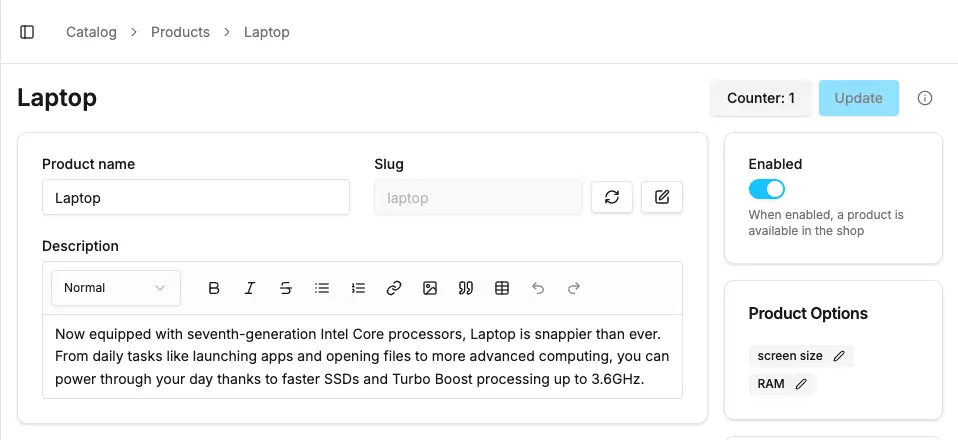
Location and position
The pageId property is required in order to specify on which page the action bar item should appear.
By default, the item will be placed to the left of any existing action bar items.
However, since Vendure v3.6.0, you can also specify the position property for more control over the placement of your action bar item.
See the section on finding page and item ids below for help in determining the correct pageId and itemId values.
import { Button, defineDashboardExtension } from '@vendure/dashboard';
import { useState } from 'react';

defineDashboardExtension({
    actionBarItems: [
        {
            pageId: 'product-detail',
            component: ({ context }) => {
                // omitted for brevity
            },
            position: {
                // The ID of the existing action bar item to position relative to
                itemId: 'save-button',
                // Order can be 'before', 'after' or 'replace'
                order: 'after',
            },
        },
    ],
});
Context Data
The context prop provides access to:
entity: The current entity being viewed/edited (e.g., Product, Customer, etc.)form: The React Hook Form instance for the current page (if applicable)route: Route information and parameters
Dropdown Menu
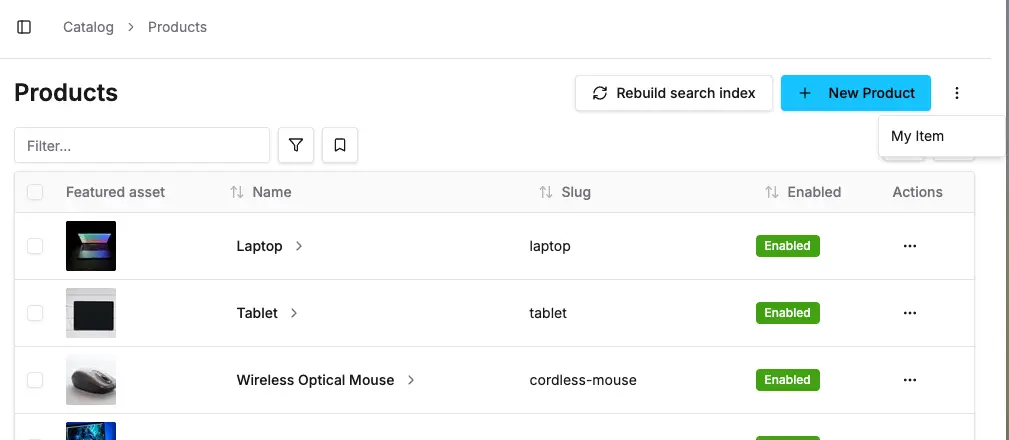
You can also define dropdown menu items for the Action Bar. This is useful for secondary actions that are needed less often by administrators.
Make sure to always wrap these in the DropdownMenuItem component for consistent styling.
import { DropdownMenuItem, defineDashboardExtension } from '@vendure/dashboard';
import { useState } from 'react';

defineDashboardExtension({
    actionBarItems: [
        {
            pageId: 'product-list',
            type: 'dropdown',
            component: () => <DropdownMenuItem variant="default">My Item</DropdownMenuItem>
        }
    ],
});
Practical Examples
Export Button
import { Button, defineDashboardExtension } from '@vendure/dashboard';
import { DownloadIcon } from 'lucide-react';

defineDashboardExtension({
    actionBarItems: [
        {
            pageId: 'product-detail',
            component: ({ context }) => {
                const product = context.entity;

                const handleExport = async () => {
                    // Export product data
                    const data = JSON.stringify(product, null, 2);
                    const blob = new Blob([data], { type: 'application/json' });
                    const url = URL.createObjectURL(blob);

                    const a = document.createElement('a');
                    a.href = url;
                    a.download = `product-${product.id}.json`;
                    a.click();

                    URL.revokeObjectURL(url);
                };

                return (
                    <Button variant="outline" onClick={handleExport} disabled={!product}>
                        <DownloadIcon className="mr-2 h-4 w-4" />
                        Export
                    </Button>
                );
            },
        },
    ],
});
Sync Button with Loading State
import { Button, defineDashboardExtension } from '@vendure/dashboard';
import { RefreshCwIcon } from 'lucide-react';
import { useState } from 'react';
import { toast } from 'sonner';

defineDashboardExtension({
    actionBarItems: [
        {
            pageId: 'product-detail',
            component: ({ context }) => {
                const [isSyncing, setIsSyncing] = useState(false);
                const product = context.entity;

                const handleSync = async () => {
                    if (!product) return;

                    setIsSyncing(true);
                    try {
                        // Simulate API call to external system
                        await fetch(`/api/sync-product/${product.id}`, {
                            method: 'POST',
                        });
                        toast.success('Product synced successfully');
                    } catch (error) {
                        toast.error('Failed to sync product');
                    } finally {
                        setIsSyncing(false);
                    }
                };

                return (
                    <Button variant="outline" onClick={handleSync} disabled={!product || isSyncing}>
                        <RefreshCwIcon className={`mr-2 h-4 w-4 ${isSyncing ? 'animate-spin' : ''}`} />
                        {isSyncing ? 'Syncing...' : 'Sync to ERP'}
                    </Button>
                );
            },
        },
    ],
});
Conditional Action Bar Items
You can conditionally show action bar items based on the entity or user permissions:
import { Button, defineDashboardExtension, PermissionGuard } from '@vendure/dashboard';
import { SendIcon } from 'lucide-react';

defineDashboardExtension({
    actionBarItems: [
        {
            pageId: 'customer-detail',
            component: ({ context }) => {
                const customer = context.entity;

                // Only show for customers with email addresses
                if (!customer?.emailAddress) {
                    return null;
                }

                const handleSendEmail = () => {
                    // Open email composer or trigger email send
                    console.log('Sending email to:', customer.emailAddress);
                };

                return (
                    <PermissionGuard requires={['UpdateCustomer']}>
                        <Button variant="outline" onClick={handleSendEmail}>
                            <SendIcon className="mr-2 h-4 w-4" />
                            Send Email
                        </Button>
                    </PermissionGuard>
                );
            },
        },
    ],
});
Multiple Action Bar Items
You can add multiple action bar items to the same page:
import { Button, defineDashboardExtension } from '@vendure/dashboard';
import { DownloadIcon, RefreshCwIcon, SendIcon } from 'lucide-react';

defineDashboardExtension({
    actionBarItems: [
        {
            pageId: 'product-detail',
            component: ({ context }) => (
                <Button variant="outline">
                    <DownloadIcon className="mr-2 h-4 w-4" />
                    Export
                </Button>
            ),
        },
        {
            pageId: 'product-detail',
            component: ({ context }) => (
                <Button variant="outline">
                    <RefreshCwIcon className="mr-2 h-4 w-4" />
                    Sync
                </Button>
            ),
        },
        {
            pageId: 'product-detail',
            component: ({ context }) => (
                <Button variant="outline">
                    <SendIcon className="mr-2 h-4 w-4" />
                    Share
                </Button>
            ),
        },
    ],
});
Available Button Variants
The dashboard provides several button variants you can use:
default- Primary button stylesecondary- Secondary button styleoutline- Outlined button styleghost- Minimal button styledestructive- For destructive actions (delete, etc.)
<Button variant="default">Primary</Button>
<Button variant="secondary">Secondary</Button>
<Button variant="outline">Outline</Button>
<Button variant="ghost">Ghost</Button>
<Button variant="destructive">Delete</Button>
Best Practices
- Use appropriate icons: Icons help users quickly understand the action
- Provide loading states: Show loading indicators for async operations
- Handle errors gracefully: Use toast notifications for feedback
- Consider permissions: Use
PermissionGuardfor actions that require specific permissions - Keep labels concise: Use short, descriptive labels for buttons
- Group related actions: Consider the order and grouping of multiple action items
- Test thoroughly: Verify your actions work correctly across different entity states
Finding Page and Item IDs
To find the pageId and itemId for your action bar items:
- Enable Dev Mode in the dashboard
- Navigate to the page where you want to add your action
- The page ID will be shown in the dev mode overlay
- Use this ID in your action bar item configuration